In the fast-growing digital world, the laptop has become one of the fundamental devices in executing various tasks related to work, learning, and personal activities. However, it always seems to be subject, like any technology in frequent use, to a wide array of issues that would disrupt your day and keep you from being efficient. Pointing out some of these common problems and then sorting them out will improve the noteworthiness of the device and lengthen its life of service.
Common hardware problems that most users face are the drainage of batteries, dysfunction of the keyboard, and screen problems, whereas software problems are operating system errors and virus attacks. Every problem has its symptoms, diagnosis, and solutions. We shall take the challenges that most of you face in depth and provide you with practical solutions, tips on how to maintain your laptop in this comprehensive guide.
This guide presents insight to diagnose most issues that likely arise with your laptop and, thus, probably save your precious time and money in repairs. Whether you are a new tech user or an experienced one, these insights will help you maintain your laptop’s health and ensure it performs at its best.
Common hardware problems and their solutions
Battery Problems
A laptop’s battery degrades over time, which relates to a loss in performance and, eventually, to loss of life. Signs of battery problems include decreasing performance, with it going just a bit down or not fully charging in some cases. First of all, check your power settings and tweak them to the best battery use.
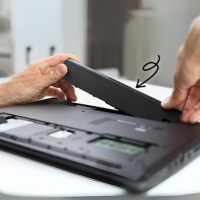
Ensure that your charger and battery contacts are free of debris, dust, or any other particles. If it does not, maybe you can recalibrate the battery, and after that, it might need a replacement. Software for managing batteries can also help to be able to monitor health and control charging patterns.
Keyboard Malfunctioning
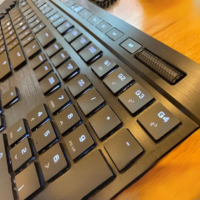
Sticky or unresponsive keys are common frustrations when using laptops. Before making the decision to have it replaced, maybe try some cleaning with compressed air or a small brush, which is enough to loosen dust or debris. Updating the settings and drivers from the laptop will do the trick if this fails. An external keyboard will be very practical and economically useful in this kind of case, or the replacement of the internal keyboard.
Screen Problems
All these can significantly mar the fun of the experience with problems such as flickering, black spots, or dead pixels. One can always go to the display settings and adjust the brightness or refresh rate while upgrading the graphics drivers to fix a flickering screen. In case you have dead pixels, you can use pixel-fixing software to try and re-energize them.
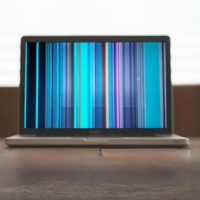
In case the damages to the screen are more severe, like cracks, or huge patches of dead pixels, repairs from a professional or a replacement are in order.
Software Issues and How to Fix Them
Operating System Errors
System errors in the OS can result in a laptop that has gone kaput, hangs up, or maybe even refuses to start, which will make your usage next to impossible. First, you should troubleshoot this issue by making a hard reboot. To further diagnose this issue, one can boot into Safe Mode in Windows and into Recovery Mode in MacOS. In many cases, built-in OS repair tools, such as Windows System Restore or MacOS Recovery, would help in rolling back some damaging changes. Keep your OS up-to-date because most updates contain some critical patches. If all fails, there might be a need for a clean OS installation, but definitely ensure you back up your data first.
App Glitches
Applications that may have frozen, crashed, or are “not responding” can sometimes be repaired by restarting the application or your laptop. Check if there are any patches, since developers release patches that correct the errors available in the applications. If this doesn’t work, then consider trying to reinstall the app. For performance issues, make sure your laptop meets the system requirements for the app; upgrade hardware if needed.
Virus and Malware
It will damage your laptop’s performance and security. An anti-virus is very essential on your laptop. Consistent scanning will detect and remove malicious software. Be wary of email attachments and downloads from unknown sources to avoid infections. In case your laptop does get infected, disconnect from the internet, run a full system scan, and proceed by following the steps that are recommended by your anti-virus software in cleaning your system. For persistent malware, you may need specialized removal tools or professional help.
Issues with Connectivity
Wi-Fi Connection Problems
Wi-Fi might work intermittently, from an occasional disconnection to complete loss of connection. To address these issues, you need to make sure that Wi-Fi is enabled in the laptop and that the router is functioning properly. For minor connectivity issues, a basic solution is to restart your router and laptop.
Just make sure there are no physical obstructions or that you are out of the range from the router. If that doesn’t help, update the Wi-Fi driver on your laptop, or consider changing the Wi-Fi channel to avoid interference from other networks. If none of this works, resetting of the network settings may be needed.
Bluetooth Issues
Problems with Bluetooth connectivity can be primarily because of pairing issues and lousy connectivity. Turn Bluetooth on and make your devices discoverable. Try deleting the devices and repairing. If that doesn’t help, check for all possible updates to your Bluetooth drivers and see if you’re getting wireless interference from other devices.
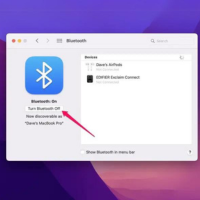
If you’re still having trouble, you may have to reset the Bluetooth hardware on your laptop, and you can do that via device manager in Windows or system settings in MacOS.
Performance Optimization Tips
Speeding Up Your Laptop
A few tactics can be implemented to enhance the performance of the laptop over time. Remove unnecessary files from the hard drive and uninstall applications that are not in use. Use disk cleanup and defragmentation tools. This method deals with the management of startup programs.
which otherwise waste significant amounts of time while booting. In fact, another really impactful upgrade is getting an increase in RAM or switching from a Hard Disk Drive (HHD) to a Solid State Drive.
Updating Drivers and Software
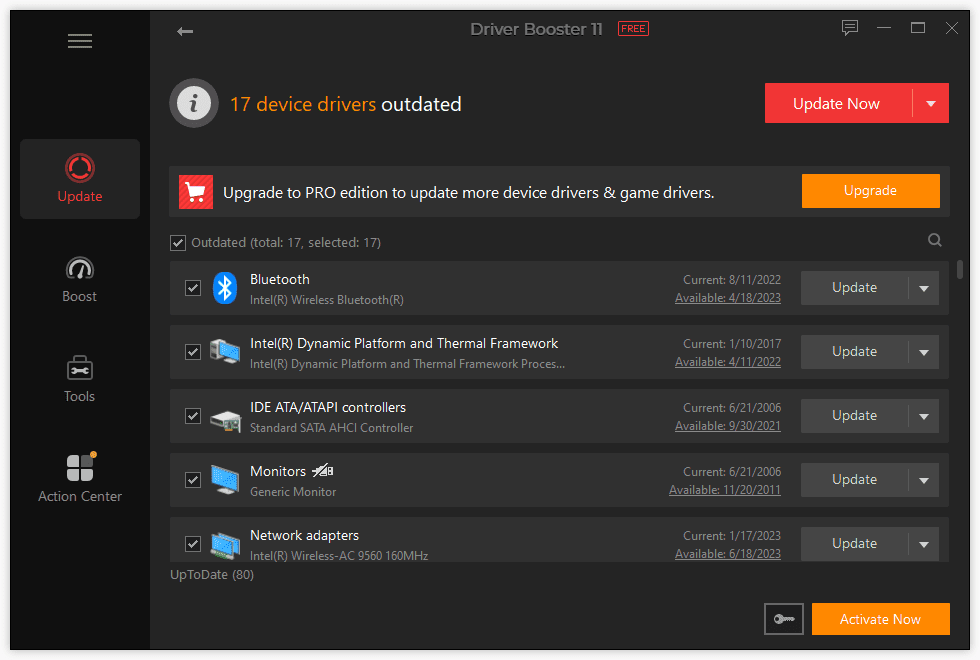
Regular updating of drivers and software is important for both performance and security. Look up the website of your device manufacturer to get the latest updates for the drivers. Where possible, allow automatic updating of the software so that you can always have the latest update.
These updates may include bug fixes, performance improvements, and additional features for your laptop.
Best Practice and Preventive Maintenance
Hardware Care
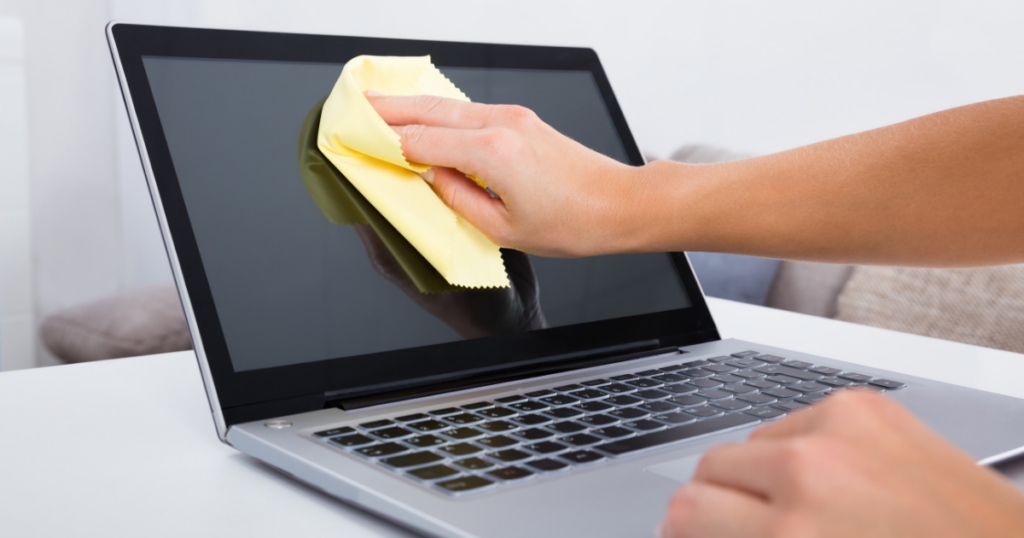
Frequent physical maintenance will prevent many hardware-related problems in your laptop. Keep the laptop clean. It should be free of dust. Blow out the debris from your keyboard and ventilation ports using compressed air. Make sure your cooling system is free of blockage. Make sure not to pour or have any sort of liquid around your laptop; get a protective casing that will also act as a cushion to drop forces. Remember, there should not be exposure to a lot of heat from the laptop or extreme environmental temperatures, as this might bring changes to the health of your battery and overall performance.
Software Health
than the data, the software health of your laptop is as important. If you have a habit of downloading files from the internet now and then, make sure to scan for viruses and malware from time to time. Use some good software for the same. Keep all the critical software, including operating systems, updated. Critical data should be backed up from time to time either on an external drive or a cloud so that in case of hardware failure or data loss due to security breaches, a minimal amount of data is lost.
Through this guide, we have discussed common laptop issues, ranging from hardware malfunctioning, such as battery and keyboard failure, to software malfunctions, such as operating system errors and virus threats. We also discussed some issues regarding the Wi-Fi and Bluetooth connection and how to maximize the performance of your laptop.
Remember, these are some of the issues best protected through preventive maintenance and timely update. You do not only increase your laptop’s lifespan by following these measures but also ensure good performance. We encourage you to embed these tips in your everyday practice to keep your laptop running smoothly.
We do hope this guide empowers you with knowledge to tackle issues with your laptop. For more inquiries or finer pieces of advice, go ahead and reach us—probably with a comment below. Your experience and tips are also welcome, as they can help many other readers in a similar position.